Blog

  • Browser testing of WordPress theme during development

    Browser testing of WordPress theme during development

    You can test your WordPress theme in multiple devices and browsers keeping them in sync during development in your local environment using node module called browser-sync. In simple terms, you can view your WordPress website in different browsers, and all the browsers will automatically reload when you make any changes to the theme.

    Requirements :

    1. You need to have a LAMP or LEMP or MAMP installed in your local machine, so that you can run a WordPress site, where you can test your theme.
    2. You need to have node and npm installed and configured correctly.
      Make sure that you have node and npm installed in your system by running following commands: node -v ,npm -v . It shows you the version number of respective application.

    Once you are sure about it, you can follow the steps below.

    Steps to set up and run browsersync

    Step 1: open terminal or command line tool and install browser sync module globally by running following command : npm install -g browser-sync
    Step 2: In your terminal go to your WordPress theme folder that you want to test and see real time changes to the theme design in all devices then, run the following command browser-sync start --proxy "http://localhost/" --files "*.css"

    And boom!!.. It will output something like this :
    [BS] Proxying: http://localhost/
    [BS] Access URLs:
    ----------------------------------------
    Local: http://localhost:3000/
    External: http://192.168.1.9:3000/
    ----------------------------------------
    UI: http://localhost:3001
    UI External: http://192.168.1.9:3001
    ----------------------------------------
    [BS] Watching files...

    You can now view the site in the new url at http://localhost:3000 .
    Above command checks for any changes in the css file in the active theme folder (not subfolders) and as soon as you make any changes it refreshes the content in all the devices that have the url opened, where http://localhost is where your development version of WordPress is running.

    Watch for additional file changes :

    • Watch other file formats for changes by mentioning the extensions separated by comma : eg "*.css,*.php"
    • Watch folders for different formats by adding : eg "/css/*.css,*.css,*.php" (checks for css files in css folder)

    You can also use browsersync with gulp or grunt task runner. you can read further about browsersync api at : browsersync.io/docs/api/
  • Responsive WordPress theme design

    Responsive WordPress theme design

    Is mobile traffic important?

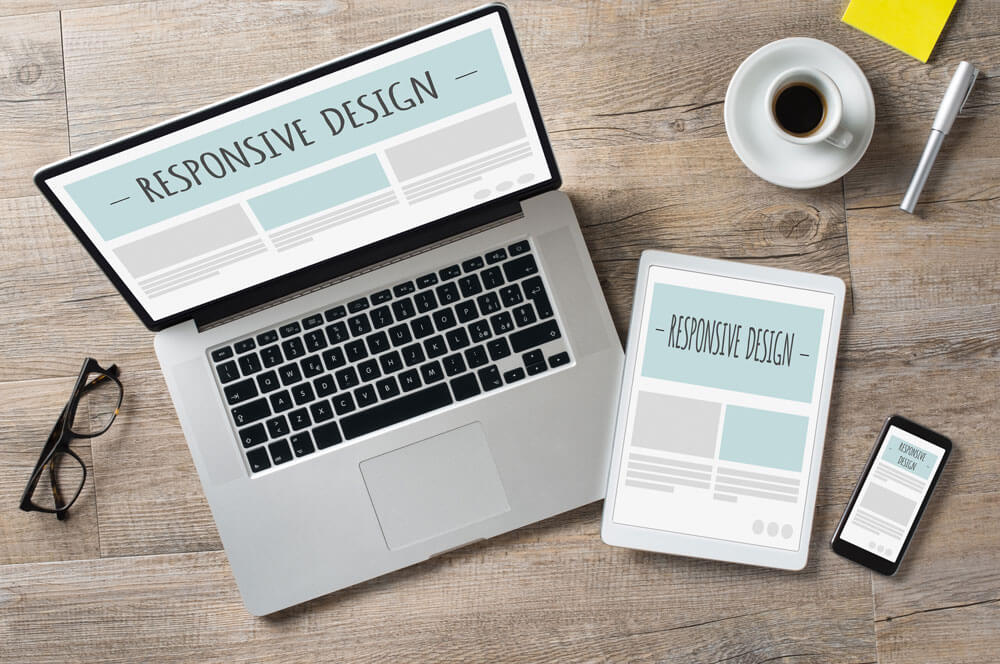
    These days, a website can be viewed in many devices from any mobile device to tablets or desktops. Mobile media is now bigger than desktop. Mobile traffic has overtaking desktop traffic. Even google rolled out its mobile friendly update in April of 2015 , giving importance to mobile friendly websites in search rankings for mobile search results. We work with many news publication websites and most of the time we find the mobile traffic to be at least 60%. So, if you want to reach wider audience , your must have a mobile friendly or responsive website.

    How to check mobile traffic data in google analytics

    Login to your Google analytics account and , under Audience , go to Mobile : Overview. There you can find the percentage of your visitors coming from desktops and percentage of visitors coming from mobile devices. You can also see all the devices. This would give you an idea on how much traffic you are getting from different devices and having a responsive website ensures that you have your site working fine in all the devices.

    Tools to check your website

    You can use the following tools to see if your website is mobile friendly or not.

    Now, if your site passes through the tests and its mobile friendly then give yourself a pat on the back. You deserve it. And if it failed or you see any issues with it. Then, you have to resolve them ASAP.

  • Whats new in WordPress 3.5

    Whats new in WordPress 3.5

    WordPress is one of the most popular content management system today. WordPress is used by about 17.5% of all the websites that exist in the world wide web, i.e. a 55.2% of content management system market share. Its continuously evolving as a complete solution for all types of website needs. The most recent version of the WordPress is 3.5. It was released on 11th, December 2012. You can download it from here : WordPress.org/wordpress-3.5.zip

    Features (for users)

    • It has completely new media manager, so you can easily manage media files than ever.
    • New Twenty Twelve default theme has been added. Its responsive and you just might fall in love with its flexibility .
    • oEmbed support for Instagram, SoundCloud and Slideshare.
    • Retina-Ready (HiDPI) Admin screen and New welcome screen
    • Privace tab has been removed and the search engine visibility feature has been moved to “Reading Settings” in admin screen.
    • Many other small but important improvements done in admin screen , like new color picker and it other new devices compatibilty.

    Features (for developers)

    • New “show_admin_column” parameter has been added for for register_taxonomy() allows auto creation of taxonomy columns on associated post types.
    • Meta query support has been added to WP_Comment_Query and WP_User_Query. So , now developers can search comments and users based on their meta value.
    • Two new hooks for the add/edit post screen: edit_form_after_title and edit_form_after_editor.
    • Speed improvement in switch_to_blog() and post Objects.
    • XML-RPC WordPress API is enabled by default and there is no option to disable from admin screen.
    • New WP_Image_Editor class has been added for image manipulation.
    • Underscore and Backbone JavaScript libraries has been added to the core.

    Please visit this link to see more detailed list of changes and developers who contributed.

    Official Video on WordPress 3.5

    Happy blogging. 🙂

  • WordPress theme development checklist

    Checklist for perfect premium WordPress theme development

    • Add Theme settings section or add options in Theme customizer
    • Implementation of Widget ready sidebars
    • Creation of different template files for different layouts
    • Efficient use of query based template files
    • Follow WordPress PHP coding Standards
    • Follow WordPress CSS coding Standards
    • Follow Accessibility Coding Standards
    • Follow WordPress data validation standards
    • Load stylesheets dynamically using wp_enqueue_style
    • Load scripts dynamically using wp_enqueue_script
    • Theme localization (multi-language support)
    • Proper Implementation of WordPress hooks
    • Make sure that all the templates like search, post, page, 404 error etc are implemented.
    • Add Woocommerce Support for eCommerce features

    WordPress Theme Testing checklist:

    • Activate debug mode to check and fix php errors
    • Test cross browser compatibility
    • Check for W3 Validation of HTML and CSS
    • Check for JavaScript errors using browser console
    • Verify with WordPress theme unit test
    • Check for compatibility with major WordPress plugins
    • Test the theme load time using plugin like query monitor
  • Important WordPress links!

  • How to remove version number from WordPress & Woocommerce?

    By default WordPress adds the version number to the header of your WordPress website. This information might be a lot helpful for a hacker who are trying to exploit any known vulnerability older version of WordPress.Do not worry! We have a solution for you. In addition to using the given solution, we always recommend using latest version of WordPress.

    You can simply add this line of code in functions.php file which is located in your current active theme in themes folder to remove WordPress version number. It simply removes the wp_generator action which prints the version number.

    remove_action('wp_head', 'wp_generator');

    How to remove version number from Woocommerce website?

    If you are using woocommmerce as your ecommerce site, you may notice that it also adds version number as meta tag. It can also be easily removed from using the following code in functions.php file.
    remove_action( 'wp_head', 'wc_generator_tag' );

    Feel free to comment and ask any question or doubt you may have about the above method, we will try to reply you back ASAP.

  • How to Display List of Authors?

    Here is how you can display a list of the authors (users) associated with your WordPress Blog, and if the user has authored any posts, the author name is displayed as a link to their posts. Optionally this tag displays each author’s post count and RSS feed link.

    <?php wp_list_authors( $args ); ?>
  • New Features in WordPress 2.8.4

    Here are the list of Newly added features to WordPress in it’s latest version 2.8.4.

    1. New Theme Installer routines
    2. Add CodePress syntax highlighting to Theme and Plugin editors
    3. Add Documentation(function) lookup to Theme and Plugin editors
    4. Use “Custom Header” for menu text and revise Default theme to reflect change
    5. Separate Comments into a separate postbox, from Discussion postbox, on the Edit Post screen
    6. Make tags accessible without Javascript on the edit screen
    7. Don’t ask for confirmation when marking a comment as spam
    8. Don’t notify post author of own comments
    9. Fix comment paging for static front page
    10. Allow the dashboard widgets to be arranged in up to four columns as set via the Screen Options tab
    11. Make titles into links in Dashboard Right Now module (this was in 2.7.1)
    12. Improved Admin icons (grey-to-transparent shadows)
    13. Update Blue Admin Color Scheme
    14. Press This improvements UI, quoting fixes, plus ability for Contributors to use Press This
    15. Add a Cancel Upload button and a Delete link to Administration > Media > Add New
    16. Add column “Rating” in Administration > Links > Edit
    17. Improve installer to help people entering wrong email addresses
    18. Improved Widget user interface
    19. Allow editing of all plugin files (Ticket 6732)
    20. Improved Plugin search (this was in 2.7.1) on Administration > Plugins > Add New
    21. Per Page option for plugins
    22. Move “Install a plugin in .zip format” to new Upload tab under Administration > Plugins > Add New
    23. Show absolute date instead of relative date for scheduled posts
    24. Fix tags suggest for post quick edit and bulk edit
    25. Permalink editor changes and fix for pages
    26. Autosave post/page when pressing Control/Command+S
    27. Add toggle all button to the Gallery tab in the uploader
    28. Support more than one gallery on the same page
    29. Add per page option to Screen Options for comments, posts, pages, media, categories, and tags
    30. Overhaul of LiveJournal importer (also add define WP_IMPORTING)
    31. Import category descriptions for Administration > Tools > Import > WordPress
    32. Show Tools menu for all users so they can access Turbo
    33. Check for new version when visiting Administration > Tools > Upgrade
    34. In upgrade process, provide better explanation for database upgrade message
    35. Fix most popular link category list
    36. Add description field for Tags in Administration > Posts > Tags
    37. WAI-ARIA landmark roles to added to WordPress Default theme
    38. “Choose a city in the same timezone as you” for Timezone in Administration > Settings > General
    39. Remove My Hacks option from Administration > Settings > Miscellaneous
    40. Hide email addresses from low privilege users on Administration > Comments
    41. Allow case-insensitive logins
    42. Login and Registration pages noindex followed
    43. Give login screen proper iPhone viewport
    44. Enforce unique email addresses in Add/Edit users
    45. Make user_nicenames unique during registration
    46. Add “Send this password to the new user by email” option to Administration > Users > Add New
    47. Don’t set user’s Website url to http:// in Administration > Users > Add New
    48. Add password strength meter to Add User and Edit User
    49. Hide things that need to be available to screen readers via offscreen positioning
    50. Use invisible class for hiding labels and legends
    51. Use a semantic class name for text targeted to screen readers

    Hope we will get a lot more new features in upcoming versions of  WordPress. This will help a lot in WordPress Customization and Development.

  • How to change the “Read More” link?

    In the WordPress Templates we generally see the “Read More” links at the end of the small excerpt text. Do you want to change the text to something else? Then please follow the steps :

    1. Navigate to Appearance –> Editor in your WordPress Dashboard
    2. Open your “index.php” or file and find this line:

    <?php the_content(__('Read more'));?>

    3. replace it with this one: 

    <?php the_content("YOUR OWN TEXT" . the_title(",",false), 0); ?>
  • How to remove Excerpt if left empty?

    How to remove Excerpt if left empty?

    In WordPress the_excerpt() displays the excerpt field value of the current post. If you do not provide any content in excerpt field to a post (in the post editor’s optional excerpt field), it will display a teaser which refers to the first 55 words of the post’s content.

    Remove excerpt text if excerpt field is empty :

    By default, if you have your theme set to display the excerpt and no excerpt content is entered, WordPress will just display the first 55 words teaser from the post. But if you want don’t want anything displayed then simply use the following code in functions.php file.

    remove_filter( 'get_the_excerpt', 'wp_trim_excerpt' );

    This code will remove the wp_trim_excerpt filter from get_the_excerpt() function.


    Change WordPress post excerpt length:

    You can use excerpt_length filter to set a custom length of the excerpt to display. Remember its the number of words, not number of characters.

    function wpboys_change_excerpt_length( $length ) {
    // Return a desired excerpt length number
    return 150;
    }
    add_filter( 'excerpt_length', 'wpboys_change_excerpt_length', 999 );


    Change WordPress excerpt more text[…] :

    When an excerpt is displayed you will see characters like this , ” […] ” at the end. You may want to change it to something meaningful, like a readmore link, or simply disable it.

    1. To remove the […] characters from excerpt output , add this filter code in functions.php file.

      add_filter( 'excerpt_more', '__return_empty_string' );

    2. To add a readmore link, we will use the same experpt_more filter as given below. Use the following code in functions.php file of your active theme.

      function wpboys_excerpt_readmore(){
      return '<a href="' . get_the_permalink() . '">Read More »</a>';
      }
      add_filter( 'excerpt_more', 'wpboys_excerpt_readmore', 999 );

    If you still have any questions, feel free to leave a comment here, and we will try to help you.