PetalBot is a website crawling bot of the Petal search engine. I have recently noticed in one of the news websites that I manage started getting a large number of requests from the bot. It kept getting worse, to the point that it started increasing the server load. So, I finally had to block the PetalBot using Cloudflare. Here is a step-by-step guide on how I did it.
Block PetalBot using Web Application firewall :
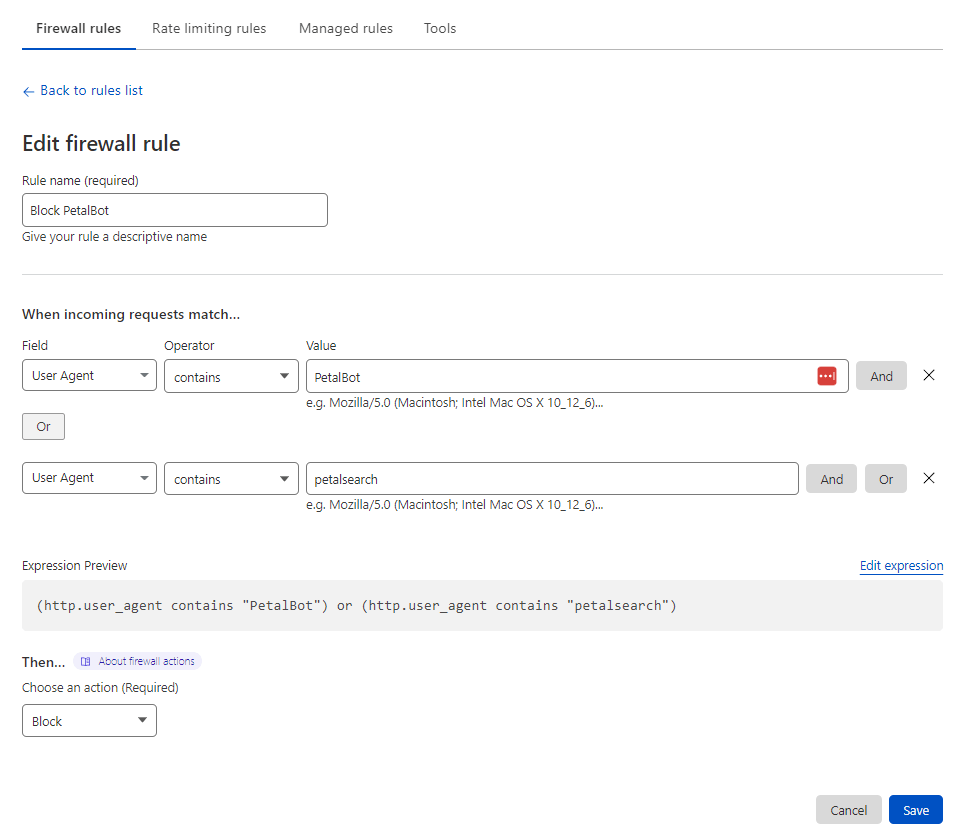
You can go to the WAF section under security and add the following firewall rule to block any User Agent which contains the name “PetalBot“. Please check the screenshot below to understand the firewall rule.
Cloudflare Firewall rule to block User Agent that contains, “PetalBot” or “petalsearch”
While developing a WordPress website, we sometimes, end up doing some mistakes, or doing specific customization, which we want to erase completely, and RESET the WordPress site back to default data.
We can achieve this in the following ways :
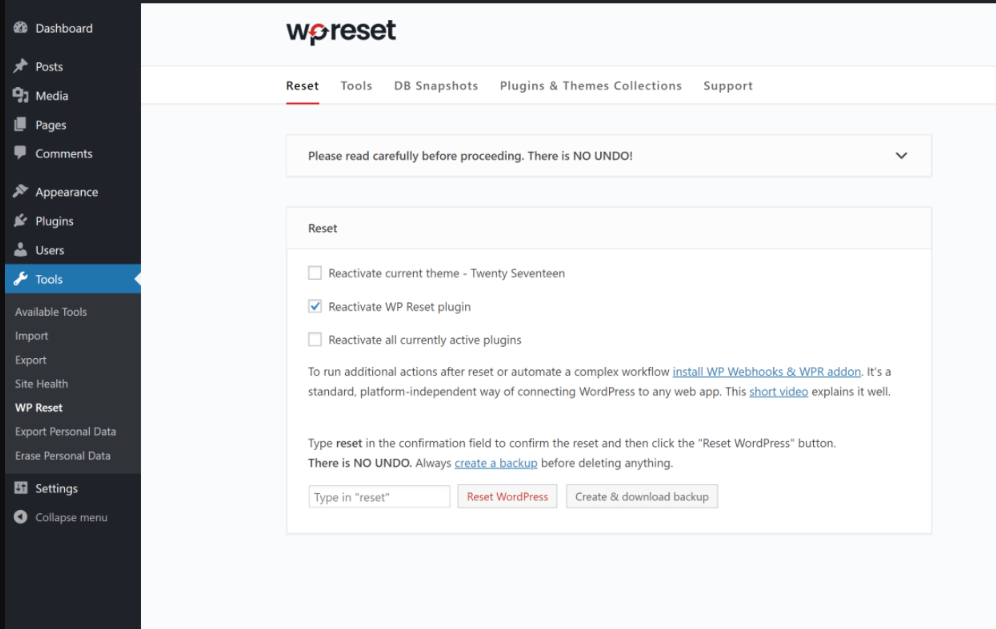
Easy Way ( using a plugin ): The easiest way to reset WordPress installation is by using WP RESET plugin.
You just have to install this plugin and go to TOOLS – WP RESET
When you hit reset, it would ask you to confirm if you would like to continue, once you say Yes. It will reset the database and files and everything back to default settings and data.
2. Hard Way ( manually ): If you are a developer yourself, you might want to do this manually. Simply follow these steps to reset WordPress to default manually.
Step 1 – Go to FTP or File Manager and delete all files in the wp-content -> WP UPLOADS folder.
Step 2 – Go to database manager or PHPMyadmin, and drop all the tables in the database connected to the WordPress installation.
Step 3 – Visit the website URL, and it would prompt you to do a fresh WordPress installation, you can follow the steps and create a clean and new WordPress site.
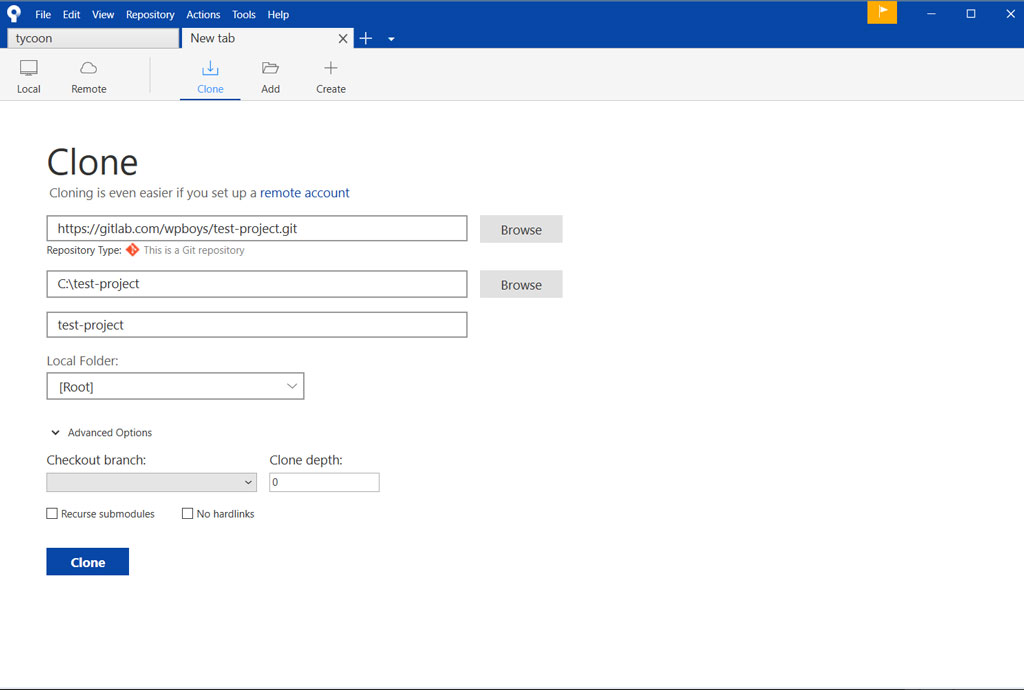
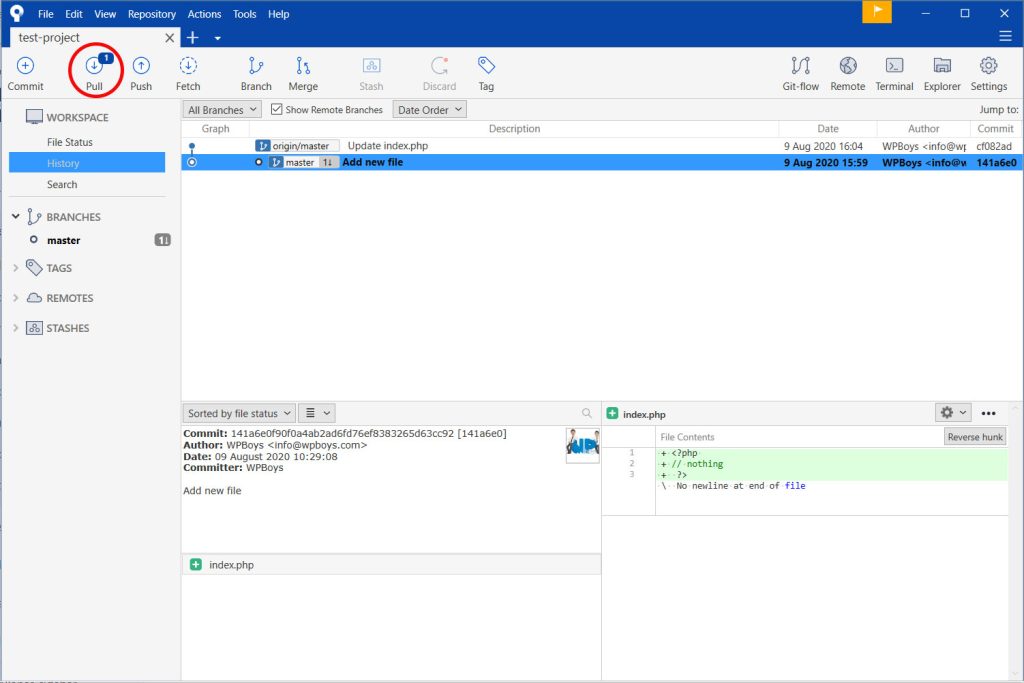
I have tried several git GUI applications in my windows development environment and I have found Sourcetree to be the best git GUI application to be best. Let me share a few features of it.
Integration with many remote git services
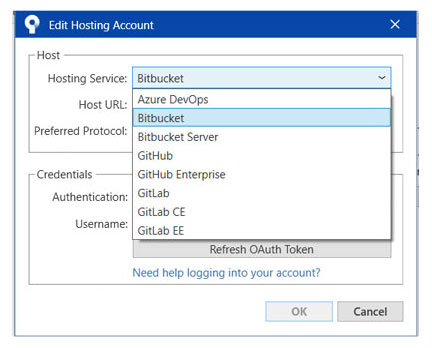
Add account from Azure DevOps, Bitbucket, Github or Gitlab. It also supports selfhosted Gitlab and Github Enterprise for free.
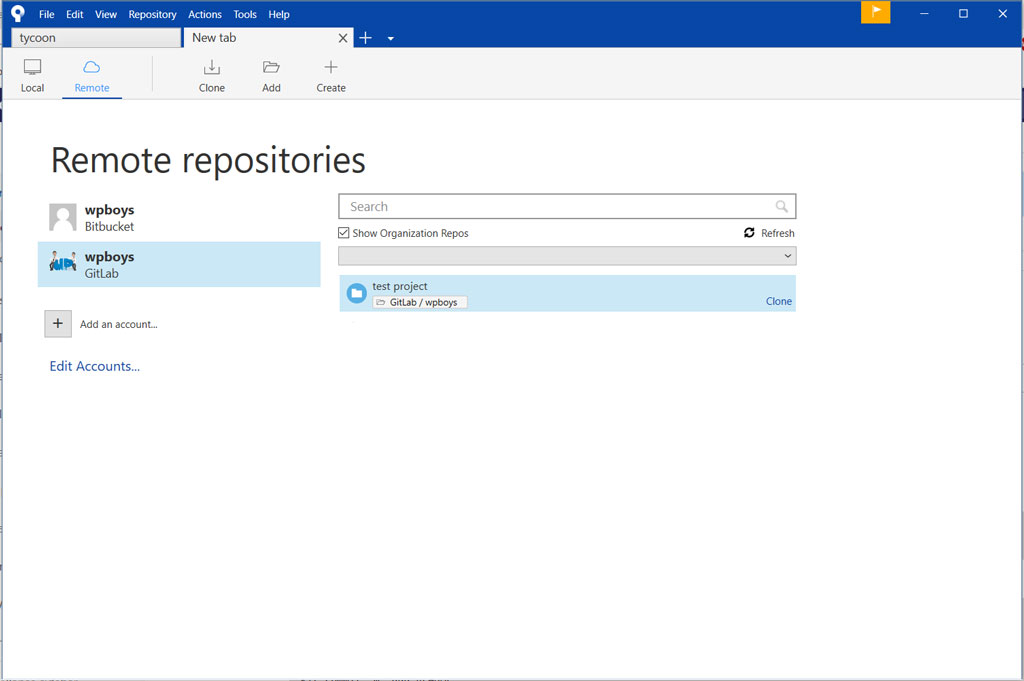
You can easily add a remote git account from various services like Azure DevOps, Bitbucket, Github, or Gitlab in sourcetree.
What do you guys think about sourcetree? Do you have any other better GUI that you would like to suggest? Please comment below and let me know. happy coding!!
You just got your new WordPress website up and running? Great. Now, do you know whats the most important thing you should do first? It would be best if you considered implementing a visitor tracking code to measure the traffic or number of visits your site gets.
Google Analytics is one of the most popular visitor tracking code. It also helps in providing a lot more information on website visitors and widely used.
How to install Google Analytics using Google SiteKit
GA Google Analytics I found, GA Google Analytics plugin to be one of the quick & lighter plugins to install google analytics tracking code on your website. They also have a pro version of the plugin with enhanced features.
Google Analytics Dashboard Plugin for WordPress by MonsterInsights This plugin is the most popular WordPress plugin for Google Analytics implementation, and it has tons of features. They also have a paid version of the plugin with extra features for eCommerce tracking and many more.
WooCommerce Google Analytics Integration If you run an eCommerce website based on the Woocommerce plugin, then you should use the “WooCommerce Google Analytics Integration” plugin in addition to any of the above two plugins. WooCommerce Google Analytics Integration plugin will enable you to track add to cart, checkout, and many other woocommerce events in google analytics.
If you are a brave DIY person or know basic HTML and PHP, You can try installing google analytics without a plugin.
The simplest way to set up google analytics on your website is to copy the tracking code from your google analytics account and paste it in your current active theme’s header.php file before </head> .
Another way to implement the google analytics code manually would be to paste the following code in your current active theme’s functions.php file. Note that you should replace with your tracking code that you have copied from your google analytics account.