Category: Errors

  • How to fix Elementor Scheme errors: ‘Elementor\\Scheme_Typography’  & ‘Elementor\\Scheme_Color’ 

    How to fix Elementor Scheme errors: ‘Elementor\\Scheme_Typography’  & ‘Elementor\\Scheme_Color’ 

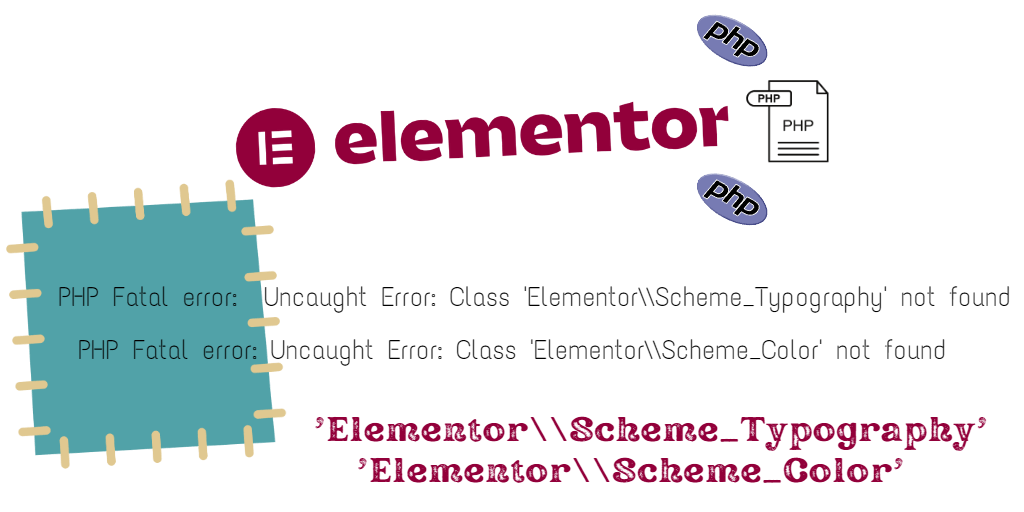
    If you have an old Elementor-based theme and you upgraded elementor recently, you may notice an error like the one below :
    PHP Fatal error: Uncaught Error: Class 'Elementor\\Scheme_Typography' not found

    PHP Fatal error: Uncaught Error: Class 'Elementor\\Scheme_Color' not found

    The above errors occurred because Scheme_Typography and Scheme_Color have been deprecated since elementor version 3.6.0.

    How to fix the elementor Scheme errors :

    This is not a straightforward fix. You need to get into code, and if you do not have experience, you should consider hiring a WordPress developer, to do the job.

    STEP 1: You have to first, download the plugin or theme that’s causing the error. Then, you have to do a folder search for the following: Scheme_Color:: And Scheme_Typography:: to find out a list of all instances of the code that is causing the error.

    STEP 2: You should replace all references of Scheme_Color with \Elementor\Core\Schemes\Color and Scheme_Typography with \Elementor\Core\Schemes\Typography.

    Here are two examples given below.

    /*** Example 1  ***/
    
    //Old Code 
    //'type' => Scheme_Color::get_type(),
    //'value' => Scheme_Color::COLOR_1,
    
    // New Code 
    'type' => \Elementor\Core\Schemes\Color::get_type(),
    'value' => \Elementor\Core\Schemes\Color::COLOR_1,
    
    
    /*** Example 2 ***/
    
    //Old Code 
    //'scheme' => Scheme_Typography::TYPOGRAPHY_1,
    
    // New Code 
    'scheme' => \Elementor\Core\Schemes\Typography::TYPOGRAPHY_1,


  • How to Debug errors in WordPress

    WordPress has excellent inbuilt features to help you debug. You can enable most of the features by making small changes in the wp-config.php file in WordPress and you can also use a few plugins listed below to easily debug not only PHP errors but also, database queries, HTTP calls blocks and many more.

    Step 1: Enable debug mode

    Add the PHP constant WP_DEBUG in the wp-config.php file with the value “true” to enable debug mode in your WordPress website. Here is the code : define( 'WP_DEBUG', true );. It’s set to false by default and once you enable it, you will be able to see error messages and other debug features.

    Step 2: Enable error log

    WordPress has a feature to log all error messages in a file named debug.log in the wp-content folder by default. You have to edit the wp-config.php file add the following code define( 'WP_DEBUG_LOG', true ); . You can also define a custom log file by defining the file location with the following code : define( 'WP_DEBUG_LOG', '/tmp/site-errors.log' );

    Step 3: Display / Hide the error messages

    You can also display or hide the errors directly on the respective pages. By default, when you enabled WP_DEBUG, it will display the error messages. But you may want to hide the error messages and only log them. You can use the following code to hide error messages in the front-end and log them : define( 'WP_DEBUG_DISPLAY', false ); . Remember that you still have to have the error log enabled to be able to see the error messages using the following code as given in step 2 : define( 'WP_DEBUG_LOG', true );.

    Step 4: Save and display database queries

    Sometimes slow database queries in WordPress can cause the whole site to load slower but you can debug it easily with WordPress’s inbuilt feature to save all database queries to a variable and print them anywhere on the page to analyze it. You can use the following code in the wp-config.php file, to enable it : define( 'SAVEQUERIES', true ); . This will save all database queries on a given page to a global variable $wpdb->queries. So, you still have to use the following code on the page to display the array with all the database queries: print_r($wpdb->queries);.

    Step 5: Disable Fatal Error Handler

    Whenever a fatal error occurs in a WordPress site, it doesn’t directly show it on the frontend but sends an email to the admin and helps users not get locked out from the admin section. This feature was introduced in WordPress 5.2 and I think it’s a wonderful feature to reduce the hassle for site owners. But if you are a developer, you may want to disable the fatal error handler with the following code in the wp-config.php file : define( 'WP_DISABLE_FATAL_ERROR_HANDLER', true );.

    Step 6 : Using plugins to debug errors in WordPress

    WordPress has many plugins to help you debug PHP errors, warnings, deprecated messages, database queries, hooks and actions, block editor blocks, enqueued scripts and stylesheets, HTTP API calls and many more. Here is a list of the two most popular plugins that you can use for debug:

    Query Monitor is my favorite plugin among the two, I highly recommend it to debug any issue in your WordPress website.

    Complete code to debug in WordPress website :

    // Enable WP_DEBUG mode
    define( 'WP_DEBUG', true );
    
    // Enable Debug logging to the /wp-content/debug.log file
    define( 'WP_DEBUG_LOG', true );
    
    // Disable display of errors and warnings
    define( 'WP_DEBUG_DISPLAY', false );
    @ini_set( 'display_errors', 0 );
    
    // Save database queries
    define( 'SAVEQUERIES', true );

    Debug is a very important part of any WordPress website project to make sure the site is functioning well without any issues. Hope I have listed most of the debug methods for it. Please comment below and let me know if you have any questions.
  • How to fix “Bootstrap’s JavaScript requires jQuery version 1.9.1 or higher, but lower than version 3” error

    How to fix “Bootstrap’s JavaScript requires jQuery version 1.9.1 or higher, but lower than version 3” error

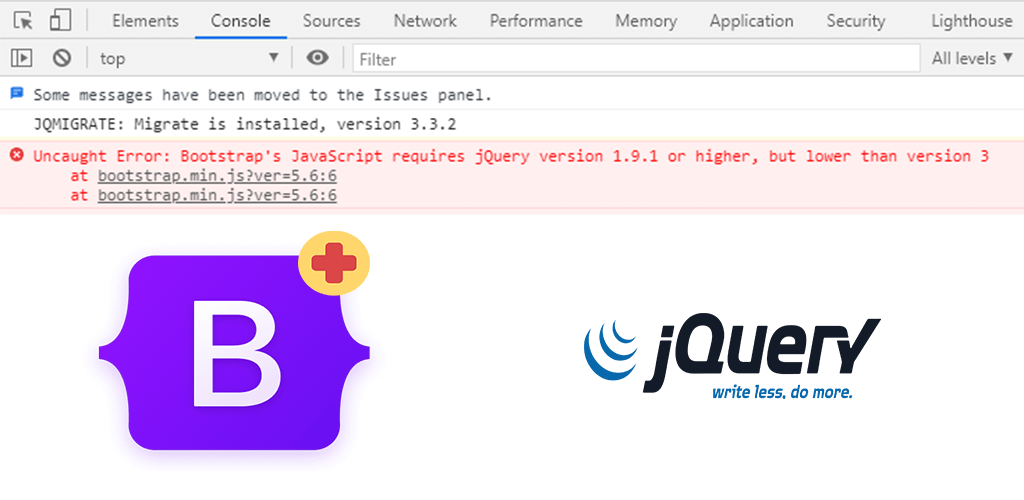
    If you see the JavaScript error that says, “uncaught error: bootstrap’s javascript requires jquery version 1.9.1 or higher, but lower than version 3“, that means you have bootstrap version 3.3 or lower on your website which uses an older version of jQuery. But your website has a newer version of jQuery (higher than version 3).

    To fix it, you simply have to install the latest bootstrap 3 JavaScript file, which is version 3.4.1. You can download bootstrap version 3.4.1 from here: https://github.com/twbs/bootstrap/releases/download/v3.4.1/bootstrap-3.4.1-dist.zip

    Go to the bootstrap.min.js file in the zip file and replace your old bootstrap.min.js file in your website with this new one and it will work fine with jQuery version 3 or later.

  • How to fix $.browser undefined error in WordPress with jQuery Migrate

    $.browser function has been deprecated from the latest jQuery version. It had the flags $.browser.webkit, $.browser.safari, $.browser.opera, $.browser.msie and $.browser.mozilla to detect respective browsers in previous versions. But now, if your site has code with these flags and your theme has the latest version of jQuery, then it will throw an error message sayings “undefined”. But do not worry, you can fix it.

    From WordPress version 5.5, “jquery-migrate” library has been removed from WordPress core. Hence, you will get an error if your theme or any other plugins are trying to access any jQuery features that are deprecated. You can also install a plugin called Enable jQuery Migrate Helper, to include the jquery-migrate library in the latest version of WordPress.

    How to fix $.browser error:

    Normally this issue occurs in an older version of themes that are not updated. You have to enqueue the jquery-migrate library in your theme to fix the issue.

    if ( !function_exists( 'wptips_add_juery_migrate' ) ) {
      /**
       * Add jQuery Migrate script in front end.
       *
       */
      function wptips_add_juery_migrate() {
        wp_enqueue_script( 'jquery-migrate' );
      }
    }
    add_action( 'wp_head', 'wptips_add_juery_migrate' );

    You can check your theme for jquery script enqueue or any other script with jquery as a dependency and make sure that you add an additional dependency of jquery-migrate to fix the issue.

    How to fix errors in the admin section only :

    // add jquery migrate only to the admin section
    function wptips_add_jquery_migrate() {  
            wp_enqueue_script('jquery-migrate');  
    }  
    add_action('admin_enqueue_scripts', 'wptips_add_jquery_migrate'); 

    Note: You have to add the code in the functions.php file of your active theme for it to work.


    If you still have any questions, please ask me in the comment section. I will be glad to help you out.