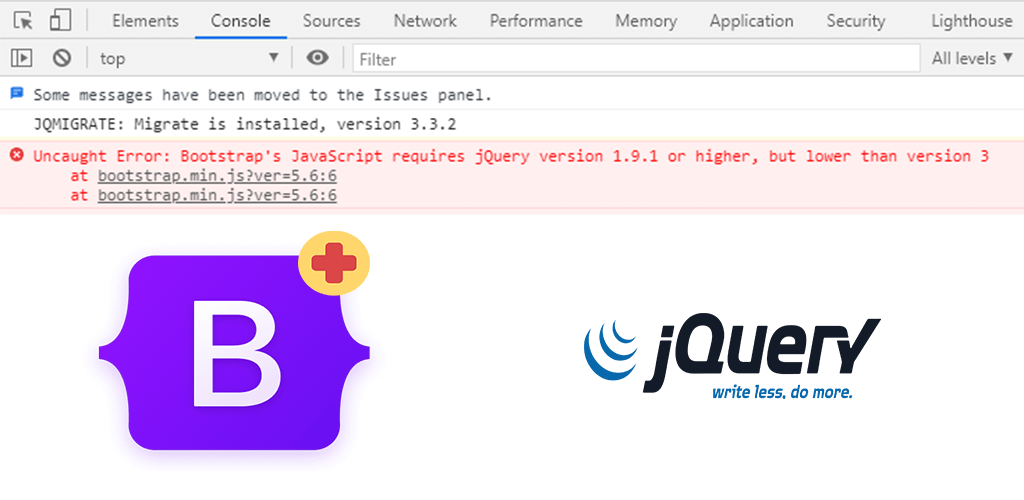
I had recently shared a detailed post on how to fix jQuery error in your website due to WordPress core update, which doesn’t load the jQuery migration script. And one of the visitors asked in the comment section, if they can load a different version of jQuery on different pages. I found this interesting and today I am writing this post with details on how you can load one version of jQuery on the entire site and a different version of jQuery for a few specific pages in your WordPress based website.
How to load different version of jQuery in specific pages in WordPress
Insert the following code in your active theme’s functions.php file and change the “If condition” as per your requirements. In the given code, it checks for pages with ID 2 and inserts the new jquery code. You will also have to change the value of $new_jq_url string variable value to the jquery version file URL. Here is the code :
/*
* change the IF condition in the code to meet your requirements. In this example, the condition checks for page with ID 2 using is_page() function.
* Example conditions :
*  // check for page with slug "about" : if(is_page('about'))
*  // check for post with category "fruits" : if(has_category("fruits"))
*
* change the $new_jq_url string variable value to your required jquery version file URL.
*/

function wptips_custom_jqscript() {
        $new_jq_url = 'https://code.jquery.com/jquery-3.5.1.min.js';
	if(is_page(2)):   // change this condition to meet your requirements
       		wp_deregister_script( 'jquery' );
		wp_register_script( 'jquery',$new_jq_url, '','', true );
	endif;
}
add_action( 'wp_enqueue_scripts', 'wptips_custom_jqscript' );
How the above code works
WordPress uses wp_register_script function to register javascript frameworks and wp_deregister_script function to deregister or remove the javascript framework from the site. So, in the above code, we first added a condition to check, if the page ID is 2( you can add any condition, depending on your requirements) and if the condition is met, we used the wp_deregister_script function to deregister the default jQuery file and used wp_register_script function to register a new jQuery file for that page.
Try implementing the given code and let me know if you have any questions in the comment section. I will try my best to reply and help you as much as I can.